
If you have ever handed your child a tablet so you could cook dinner, answer a message, or get ten quiet minutes, you are not alone.
Parent Intel contains affiliate links and is a member of the Amazon Services LLC Associates Program. If you make a purchase using one of our links, we earn a small commission.
Most parents just want screen time to feel safer, easier to manage, and less likely to lead kids into strange videos.
So, is YouTube Kids safe?
YouTube Kids is safer than regular YouTube, but it is not perfect. It works best when parents set it up carefully, check in often, and use it as a tool, not as a fully hands-off babysitter.
In this post, you’ll learn:
- what YouTube Kids is
- whether YouTube Kids is safe
- which settings matter most
- what risks parents should know
- how to make YouTube Kids safer at home.
What Is YouTube Kids?
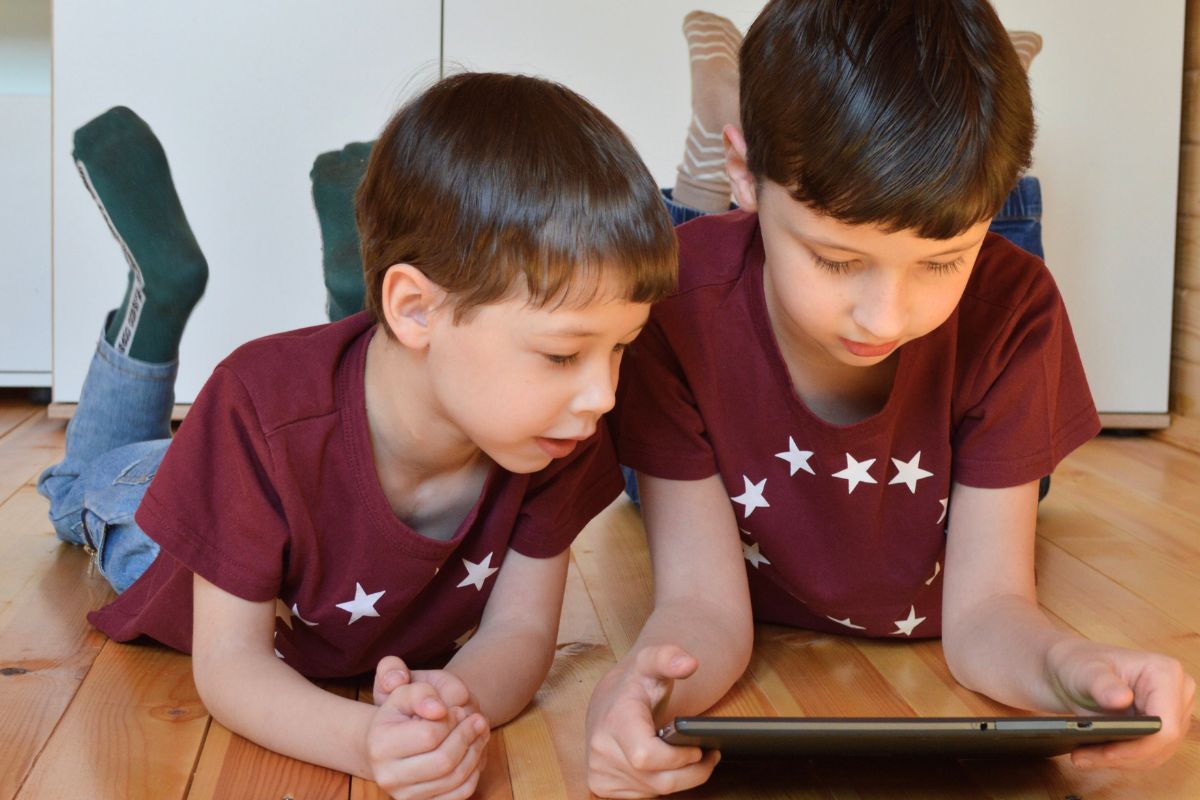
Photo by Sunriseforever from Pixabay
YouTube Kids is a separate app made for children. It has a simpler design, bigger buttons, kid-friendly categories, and settings parents can adjust.
It is different from regular YouTube because kids see a more limited version of YouTube instead of the full platform.
Parents can create a profile for each child and choose content settings based on age:
- Preschool for ages 4 and under
- Younger for ages 5 to 8
- Older for ages 9 to 12
- Approve content yourself, where parents handpick videos, channels, or collections.
The safest setup is the one parents customize. Do not rush through setup. A few minutes choosing the right settings can prevent a lot of stress later.
Is YouTube Kids Safe?
YouTube Kids is safer than regular YouTube, but it is not completely risk-free.
The app has content settings, search controls, blocking tools, reporting options, and a timer. These features help, but no filter catches everything.
Sometimes strange, low-quality, scary, or inappropriate videos can still appear.
I think of YouTube Kids like a fenced playground. It is safer than letting your child wander anywhere, but you still need to keep an eye on them.
In our house, YouTube Kids has been much better than regular YouTube. Our oldest is 7 and loves how-to-draw videos. On regular YouTube, it is too easy for him to click into random videos that feel too grown-up or just plain weird.
My rule is simple: if I would not be comfortable with my child watching it while I am nearby, I do not want them watching it alone.
YouTube Kids Vs Regular YouTube
Photo by mojzagrebinfo from Pixabay
For younger kids, YouTube Kids is usually the better choice.
Regular YouTube has endless content. Some of it is helpful and educational, but a lot of it is not made for children.
A child may start with a drawing tutorial and end up watching prank videos, toy unboxings, gaming clips, or content that is not age-appropriate.
YouTube Kids gives parents more control. Parents can choose age settings, approve content, turn off search, set timers, block videos, and check watch history.
If your child says YouTube Kids is “for babies,” do not make that the only reason you move them to regular YouTube. Ask yourself if they are ready for open search, ads, recommendations, comments, and adult-level content choices.
The Most Important YouTube Kids Settings
You do not need a perfect screen time system. These settings make the biggest difference.
Choose The Right Content Level
Start with the youngest setting that still works for your child.
For younger kids, sensitive kids, or kids who get scared easily, stricter is usually better. You can always loosen settings later.
Use Approved Content For Younger Kids
If you want the safest setup, use Approve content yourself.
This lets you choose the exact videos, channels, or collections your child can watch. It also keeps your child from freely searching for random videos.
A good approved list might include:
- calm drawing videos
- alphabet or phonics videos
- gentle music
- simple science videos
- movement songs
- read-aloud videos
- trusted educational channels.
Start small. Approving too many channels at once can make the app feel hard to manage again.
Turn Off Search
Search is one of the easiest ways kids end up somewhere unexpected.
Even innocent searches can lead to videos you would not have chosen. Turning off search keeps the experience more limited and easier to manage.
If your child is old enough to search, make it a shared activity. Let them ask before looking up a new topic, video, or channel.
Turn Off Autoplay
Autoplay can quickly turn one video into six.
If autoplay controls are available in your child’s setup, turning them off can help prevent long, unplanned screen time.
This is especially helpful for kids who struggle to stop watching.
Use The Timer
The timer is one of the easiest tools for busy parents.
Instead of saying “five more minutes” over and over, set the timer and make the rule clear.
Try saying, “When the timer is done, YouTube Kids is done.”
A quick warning also helps: “When this video is done, we’re turning it off and getting a snack.”
Potential Risks Parents Should Know
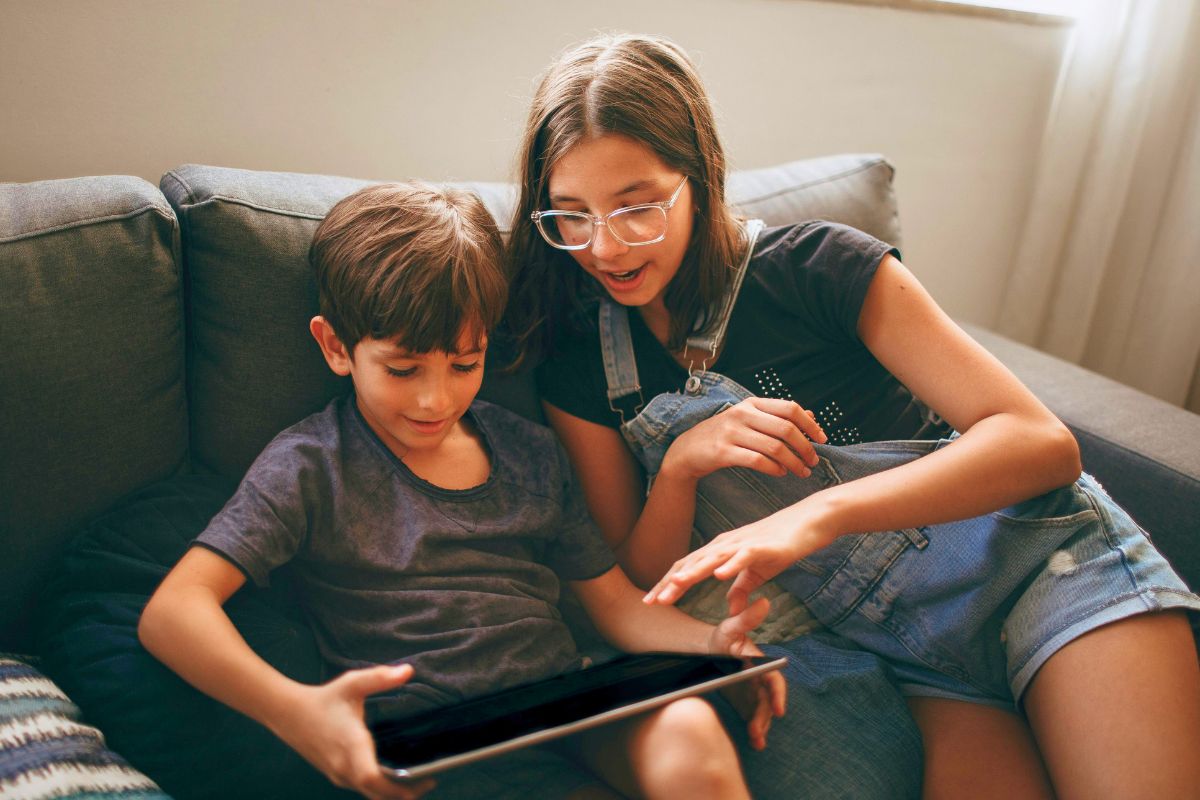
Photo by Helena L from Pexels
YouTube Kids is helpful, but parents should still watch for a few things.
The biggest risk is that inappropriate or low-quality content can slip through. A video may look child-friendly from the title or thumbnail, but the actual content may feel strange, scary, rude, or too mature.
Another risk is overstimulation.
Some videos are not “bad,” but they are too loud, too fast, or too addictive. You may notice your child becomes cranky, wild, demanding, or emotional after watching.
That matters.
A video does not have to be obviously inappropriate to be a poor fit for your child.
In our house, I pay attention to behavior after screen time. If a certain type of video leads to whining, copying rude phrases, or begging for more, that tells me something.
Are Educational Videos On YouTube Kids Helpful?
They can be, but not every “educational” video is useful.
Some videos really do help kids learn. Drawing tutorials, phonics songs, simple science videos, music lessons, and gentle movement videos can be great in small amounts.
Other videos are just loud entertainment with an educational label.
Before keeping a channel, ask:
- Does this teach something useful?
- Is the pace calm enough for my child?
- Does my child act okay after watching?
- Does this lead to play or creativity offline?
- Would I be comfortable hearing this in the background?
I especially like videos that lead to a real activity. A drawing video that turns into 30 minutes with crayons feels very different from endless cartoon clips.
Keep paper, crayons, puzzles, blocks, or books nearby so your child can move into something hands-on after watching.
What About Ads On YouTube Kids?
Photo by Helena L from Pexels
YouTube Kids can show limited paid ads. These ads are usually marked as “Ad” or “Sponsored.”
Still, kids do not always understand the difference between a video, a show, and someone trying to sell them something.
Toy videos, product-heavy videos, and shopping-style content can also make kids ask for more things.
You do not need a big lecture. Just repeat it calmly when needed.
How To Make YouTube Kids Safer At Home
The goal is not to create a perfect screen time system. The goal is to make YouTube Kids safer, calmer, and easier to manage.
Start With A Simple Setup Checklist
Before your child uses YouTube Kids often, check these settings:
- Create a child profile
- Choose the right age setting
- Use approved content for younger kids
- Turn off search if your child is not ready
- Turn off autoplay if available
- Set a timer
- Approve trusted channels
- Block anything that feels off
- Check watch history regularly.
This gives you a plan before screen time starts.
Build A Small List Of Trusted Channels
Do not rely on random recommendations every time.
Instead, make a short list of channels you feel good about.
Your list might include:
- one drawing channel
- one music channel
- one learning channel
- one calm show
- one movement channel.
Kids do not need unlimited choices. Fewer options often make screen time easier.
Watch New Channels Together First
Before a channel becomes part of your child’s regular screen time, watch a few videos together.
Listen for the tone.
Is it calm? Is it rude? Is it too fast? Is there a lot of shouting? Does it feel right for your child’s age?
I like to do a “kitchen test.” If I can hear a video from the kitchen and it already sounds annoying, chaotic, or questionable, it is probably not one I want on repeat.
Create A Screen Time Ending Routine
For many families, ending screen time is the hardest part.
Try this simple routine:
- Set the timer
- Give a warning
- Let your child finish the current video
- Turn off the device
- Move straight into the next activity.
The next activity matters.
If you only say “turn it off,” your child may fall apart. If you say, “Turn it off, then we’ll have a snack,” the transition usually feels easier.
Good after-screen activities include:
Pay Attention After Watching
Watch your child after YouTube Kids, not just during it.
Do they seem calm, creative, and happy?
Or do they seem irritated, demanding, hyper, scared, or unable to move on?
That tells you whether the content is working for your family.
If a channel always causes problems, remove it. You do not need to justify it.
Simple YouTube Kids Rules For Families
Photo by wutthichai c from Pexels
You do not need a complicated rule chart.
A few simple rules can help:
- YouTube Kids only after homework, chores, or quiet time
- No YouTube Kids during meals
- No autoplay
- Ask before searching
- Stop when the timer ends
- No watching behind closed doors
- Parents can block any video or channel.
Rules work better when they are boring and predictable. If the rule changes every day, kids will keep testing it.
Start with three rules first. Too many rules at once can be hard to follow.
Final Thoughts
YouTube Kids is safer than regular YouTube, but it is not completely hands-off safe. It has helpful controls, but filters are not perfect, and some videos may still feel too loud, strange, or inappropriate.
For our family, YouTube Kids is the better choice when screen time is happening, but we still use limits, parent-approved channels, and regular check-ins.
Start with one small change today. Turn off search, disable autoplay if it is available, set a timer, make a short list of trusted channels, or block one channel that feels off. Small changes really can make YouTube Kids safer, calmer, and easier to manage.